Edit Jobs in a Data Pipeline
You can edit existing jobs in a pipeline that you have created in Data Pipeline Studio (DPS). Depending on the usecase a pipeline can have one or more configured jobs. Each type of job can have different stages. For example a simple data ingestion pipeline has just 3 stages - data source, data integration, and data lake. This pipeline has a single data integration job. A more complex job with the data quality stage has 3 stages but multiple jobs for data profiler, data analyzer, and issue resolver.
While editing an integration job or transformation job in a data pipeline, you cannot make changes to the source step or target step from within the job. To edit the data source or the data lake you must edit those nodes directly in the pipeline. To edit a job in a pipeline, you must ensure that the pipeline is in draft mode.
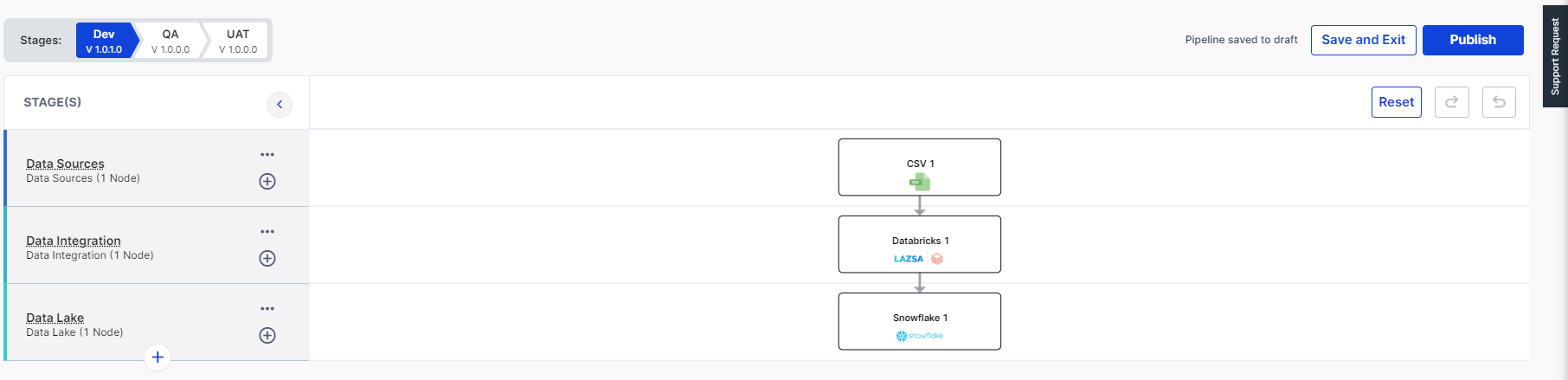
Let us consider the example of a data ingestion pipeline as seen in the figure below, with CSV as a data source node, Databricks as a data integration node, and Snowflake as a data lake node. This pipeline consists of one data integration job.
Editing the job in the pipeline involves the following tasks:
If you want to extend wheel package support to your existing jobs, refer to the following section:
To change the pipeline state to draft mode
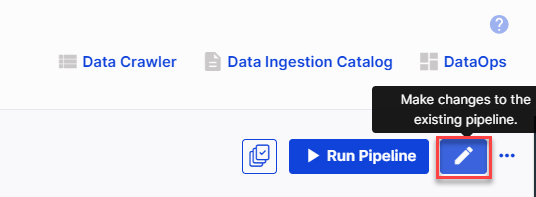
On the Data Pipeline Studio home page, click the pencil icon. The pipeline is now in the draft mode and ready to be edited.
To edit the source (data source node) of the data pipeline
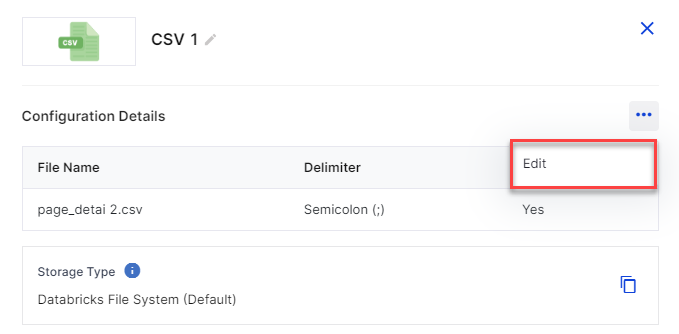
To edit the data source, click the CSV node. Click the ellipsis (…) and then click Edit.
Do one of the following:
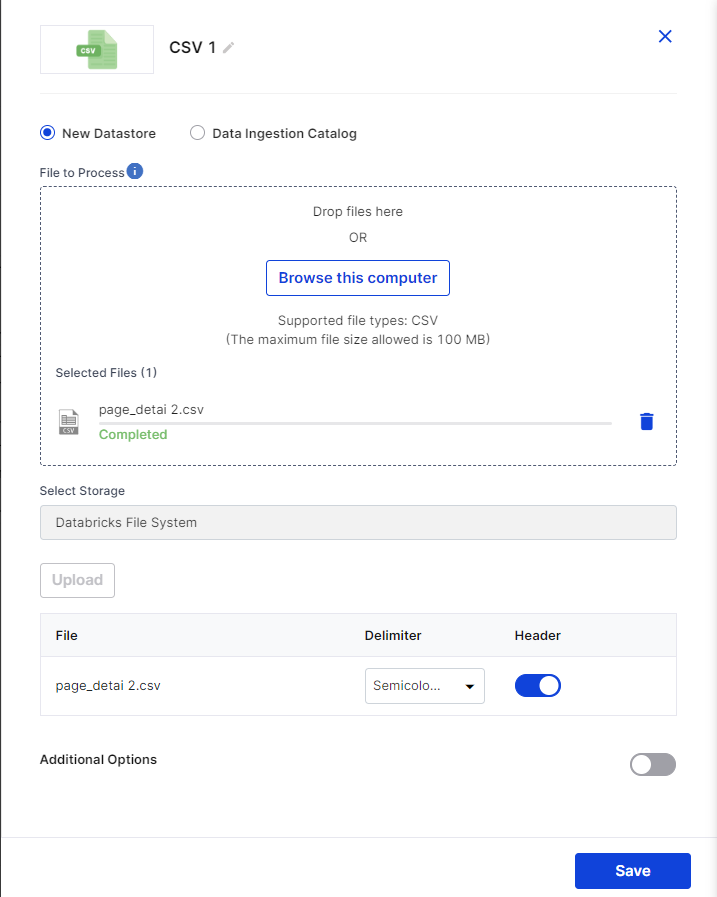
Make changes to the existing CSV file.
Click Browse this computer to upload another CSV file.
Click Data Ingestion Catalog and configure a catalog:
Choose a Catalog.
Choose Catalog Schema.
Select the required Schema Tables.
.Click Save.
To edit the target (data lake) node of the pipeline
To edit the data lake, click the Snowflake node. Click the ellipsis (…) and then click Edit.
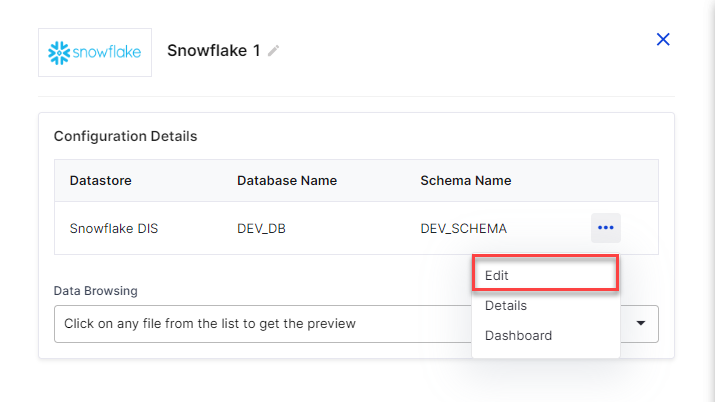
Do one of the following:
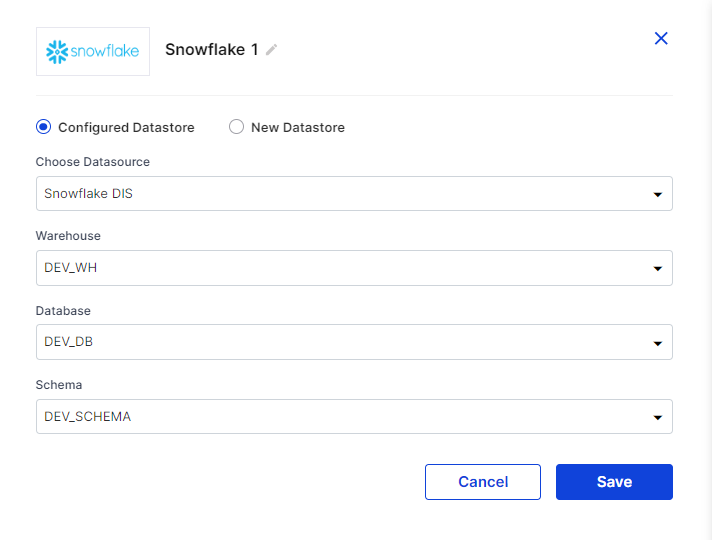
Edit options in the Configured Datastore.
Click New Datastore and configure a new Snowflake instance.
To edit a job
To edit the data integration job, click the Databricks node. Click the ellipsis (…) and click Configuration.
Make changes to the required step of the integration job and complete the job configuration.

Note:
You cannot make changes to the source and target steps of the job. For making those changes refer to Edit source node of a job and Edit target node of a job.
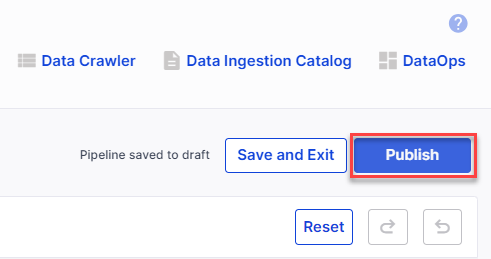
Click Publish to publish the changes that you made to the pipeline.
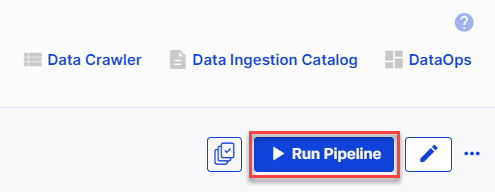
Click Run Pipeline to run the pipeline with the changed configuration.
To extend wheel package support for an existing job
Click the Databricks node to edit the data integration job. Click the ellipsis (…) and click Configuration.
Make changes to the required step of the integration job and complete the job configuration.
Note:
You cannot make changes to the source and target steps of the job. For making those changes refer to Edit source node of a job and Edit target node of a job. Click Publish to publish the changes that you made to the pipeline.
Click Publish to publish the changes that you made to the pipeline.
Click Run Pipeline to run the pipeline with the changed configuration.
 Recommended Topics | What's next? Multiple Pipelines in a Single Feature |